
Arriving in a foreign country without working cellular data creates immediate travel friction. Trying to navigate unfamiliar transit systems while configuring complex mobile settings under airport fluorescent lights quickly leads to frustration. Many travelers resort to expensive airport SIM counters or activate punitive domestic carrier roaming passes out of desperation.
You can bypass airport SIM counters entirely by configuring your hardware before departure. This Linklan LA7 setup guide shows you how to install an open travel eSIM onto your portable router using a quick Bluetooth handshake. In less than five minutes, you will establish a private, high-speed Wi-Fi hotspot for every device in your travel bag.
SMARTROAM
Pre-Departure Hardware Preparation: Why an Open eUICC Router Wins
Standard pocket Wi-Fi units from airport rental desks lock you into rigid rental periods, daily limits, and severe late fees. Proprietary virtual SIM hotspots restrict you to their internal app marketplaces with inflated data rates. The Linklan LA7 eliminates both restrictions. It contains an open, rewritable GSMA eUICC chip. You purchase open market data profiles at competitive wholesale rates and flash them directly to the router hardware.
Step-by-Step Linklan LA7 Setup Guide: Flashing Your Travel eSIM
Setting up your portable hotspot before your trip guarantees immediate internet access when your flight lands. Complete these four steps at home on stable Wi-Fi.
Step 1: Unbox and Power On the Linklan LA7 Hardware
Unbox your Linklan LA7 router and charge its 5,000mAh internal battery using the included USB-C cable. Press and hold the power button for three seconds until the 1.8-inch color display activates. Ensure the device screen displays the battery percentage and firmware readiness indicator. Download the official Linklan companion app from the Apple App Store or Google Play Store onto your primary smartphone.
Step 2: Purchase Your Travel Bundle on MobiMatter
Open the MobiMatter marketplace to select a data plan for your destination or region. Whether you need a 10GB Europe bundle, a 30GB Asia pass, or a single-country package, open market aggregators offer the best wholesale rates. Use promo code SMARTROAM at checkout to apply an exclusive discount to your plan. Once payment completes, MobiMatter delivers your setup confirmation email containing the plan activation code and installation QR code.
Step 3: Pair via Bluetooth and Flash the eUICC Chip
Understanding how to install eSIM on Linklan hardware takes only a few taps inside the mobile app:
- Enable Bluetooth: Turn on Bluetooth on your smartphone and launch the Linklan companion app.
- Connect Device: Select your LA7 router from the nearby device scan list to complete the initial pairing handshake.
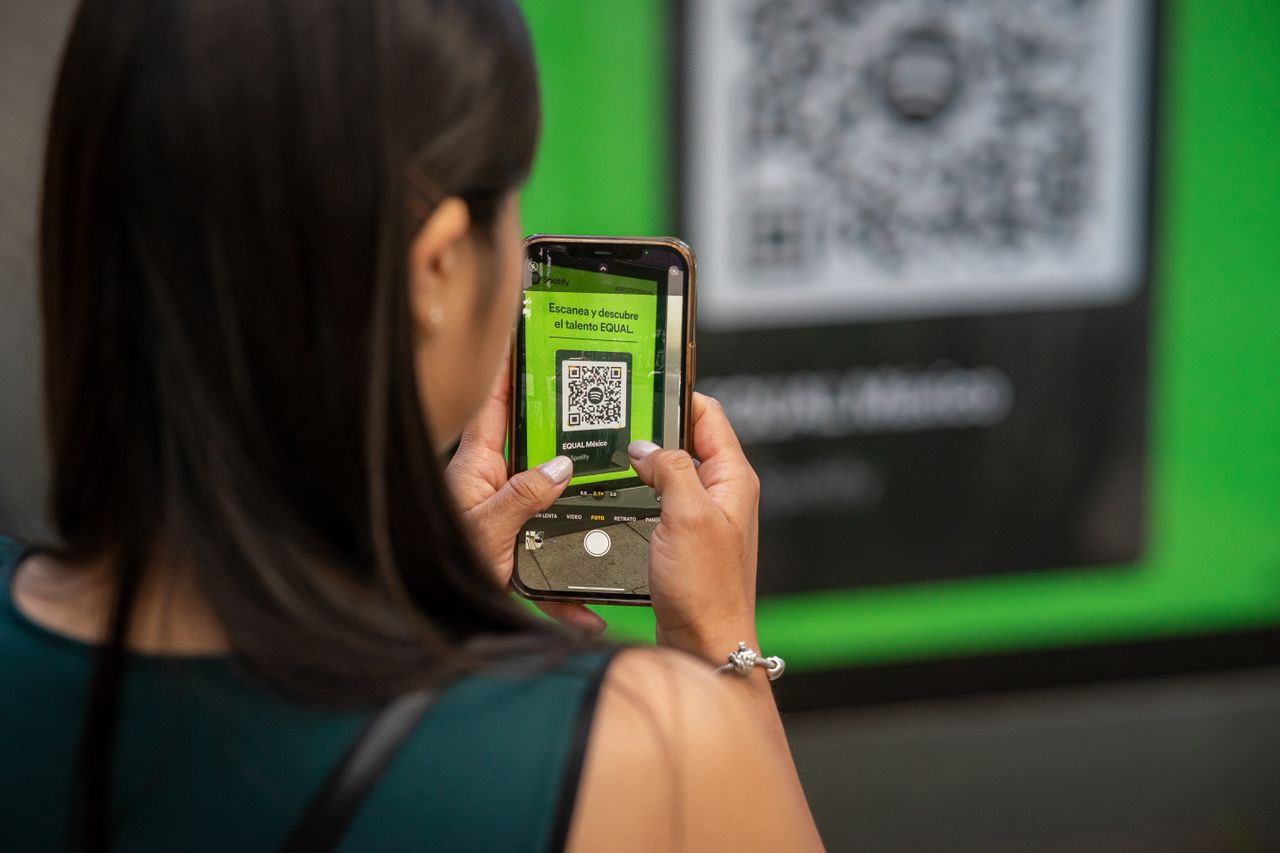
- Scan QR Code: Tap “Add eSIM Profile” in the app menu and point your camera at the MobiMatter installation QR code on your tablet or laptop screen.
- Write to Hardware: Confirm the download. The app transfers the carrier credentials over Bluetooth and writes the profile directly onto the router eUICC chip within 60 to 90 seconds.
Step 4: Configure APN Settings and Roaming Toggles
Completing your Linklan pocket wifi apn setup ensures rapid network negotiation once you arrive in your destination country. Most MobiMatter profiles configure the Access Point Name (APN) automatically. If your data status shows disconnected after landing, navigate to the Network Settings menu in the Linklan app. Enter the APN string specified in your MobiMatter order email (such as globaldata or internet), save the setting, and ensure Data Roaming is toggled to ON.
Network Selection and Congestion Management Abroad
The Linklan LA7 incorporates an LTE CAT6 modem with carrier aggregation. In major transit hubs, stadiums, and central train stations, local cell towers often experience heavy traffic. If your download speeds drop, open the Linklan companion app and navigate to Network Search. Switch from automatic selection to manual carrier mode. Choosing a secondary partner network bypasses congested primary bands and restores full browsing speeds.
Connectivity Method Comparison: Setup, Costs, and Flexibility
Review how pre-provisioned open router hardware compares against traditional airport options and smartphone tethering.
Traveling with Family or Multiple Devices?
Tethering your laptop or buying four separate phone eSIMs drains batteries and runs up costs. The Linklan LA7 Open Pocket Wi-Fi connects up to 16 devices on an independent 5,000mAh battery (12+ hours runtime) using any low-cost travel eSIM profile.
| Feature | Linklan LA7 + MobiMatter | Airport Rental Hotspots | Smartphone Hotspot Tethering |
|---|---|---|---|
| Setup Location | At home before departure | Airport arrival counter queue | On arrival at destination |
| Initial Configuration Time | Under 5 minutes via Bluetooth | 20 to 45 minutes in line | Instant (if phone is unlocked) |
| 14-Day Trip Cost | ~$95 ($80 router + $15 data) | $100 to $140 ($7 to $10/day) | $15 to $40 (plus roaming fees) |
| Repeat Trip Data Cost | $5 to $15 per data pass | $100+ rental every trip | $15 to $40 per device |
| Concurrent Connections | Up to 16 devices | 5 to 10 devices | 3 to 5 devices (high battery strain) |
| Phone Battery Impact | Zero battery impact | Zero battery impact | Severe drain (hotspot throttles phone) |
Hardware Readiness and Multi-Device Connectivity
Check the compatibility parameters of your mobile devices before your departure date.
Is Your Phone eSIM Ready?
Select your device manufacturer and model to verify hardware and carrier compatibility.
Open your phone dialer and dial *#06#. If a 32-digit EID number or barcode appears on screen alongside your IMEI, your device hardware contains an eSIM chip. Ensure your device is carrier-unlocked before purchasing.
Travelers carrying multiple laptops, cameras, handheld gaming consoles, or traveling with family should avoid using personal smartphones as continuous Wi-Fi hotspots. Constant phone tethering causes severe battery degradation, triggers thermal throttling in warm weather, and interrupts work sessions whenever voice calls arrive. An independent pocket router like the Linklan LA7 contains a dedicated 5,000mAh battery that delivers over 12 hours of active broadcast time, keeping your entire travel group online without touching your phone battery.
Frequently Asked Questions: Linklan LA7 Setup and Operation
How many eSIM profiles can you store on the Linklan LA7 hardware?
The onboard eUICC chip inside the Linklan LA7 holds up to 10 distinct carrier profiles simultaneously in internal flash memory. While only one profile can broadcast data at any given moment, you can store data plans for multiple countries before embarking on multi-destination trips. When you cross borders, simply open the Linklan app and switch active profiles in under 30 seconds without scanning new QR codes.
Why is my Linklan router connected to cell signal but showing no internet access?
This issue almost always stems from an unconfigured Access Point Name (APN) or disabled data roaming. In the Linklan companion app, verify that Data Roaming is toggled to ON. Next, inspect the APN field under Cellular Settings. If the field is blank or set to a generic carrier default, manually type the exact APN string listed in your MobiMatter order confirmation email and reboot the router.
Can you receive two-factor authentication (2FA) bank texts on your phone while connected to the router?
Yes. Your phone connects to the Linklan LA7 over local Wi-Fi, leaving your phone’s cellular modem free. Keep your domestic physical SIM or primary eSIM active in your phone settings with Data Roaming turned OFF. Your home carrier will receive incoming SMS verification codes without triggering international data roaming charges, while all web browsing routes through the router.
Leave a Reply