
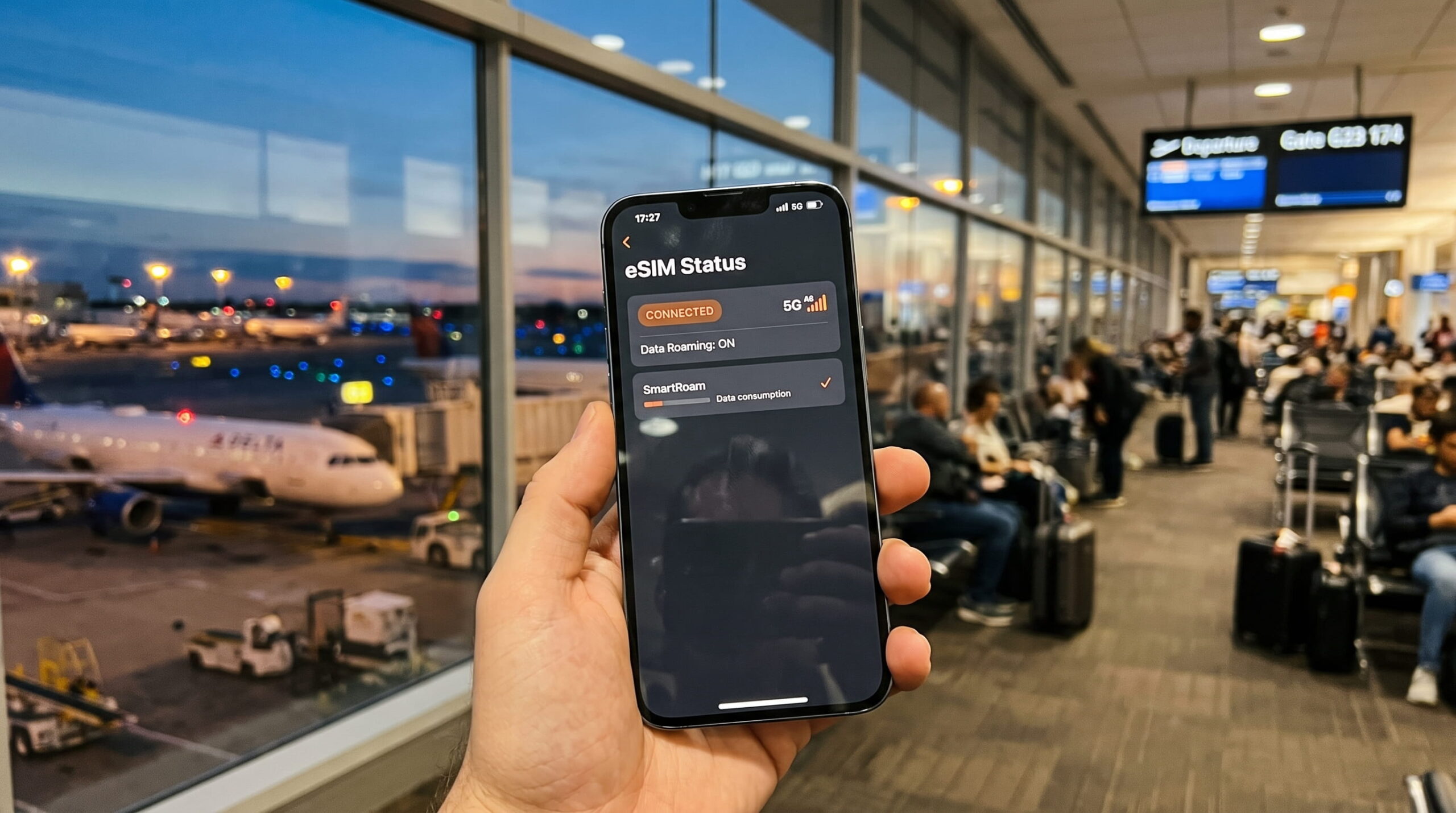
Landing at an international terminal only to see your phone stuck on an endless “Activating…” spinner creates immediate friction. You need airport transit, rideshare pickup, and communication with family, but your cellular connection refuses to resolve. Most travelers blame their hardware, yet the breakdown stems from predictable network provisioning errors.
You can prevent gate connectivity failures entirely by understanding how eSIM profile provisioning works. Installing your profile over home Wi-Fi before departure sets up the framework, while local network handshakes trigger data flow upon landing. Here is how to eliminate activation failures and bypass carrier traps before you board.
Why Travel eSIMs Hang on “Activating” at the Gate
An eSIM profile does not activate in a vacuum. When you scan a QR code, your device’s Local Profile Assistant (LPA) contacts a remote Subscription Manager Data Preparation (SM-DP+) server to download operational certificates. This initial profile download requires a stable internet connection, but it does not establish cellular connectivity.
The actual activation occurs only when your phone establishes a radio handshake with a local partner tower at your destination. If you attempt to activate a destination-specific profile while sitting at your departure gate, your phone searches for foreign cellular frequencies that do not exist locally. The operating system reports this state as “Activating” or “Cellular Setup Incomplete” until you land within reach of the contracted partner network.
Where Are You Traveling?
Compare high-speed local passes with transparent provider pricing and instant eSIM delivery.
Select a popular destination above or search for a country to view eSIM plans.
The Four Technical Reasons eSIMs Fail Upon Landing
1. Roaming Agreement Authentication Latency
Travel eSIMs operate via wholesale roaming agreements through mobile virtual network operators (MVNOs). When your phone connects to an overseas tower, the local base station queries the host carrier’s Home Location Register (HLR) or Home Subscriber Server (HSS), often located thousands of miles away in Europe or Hong Kong. If that routing tunnel experiences peak load, your initial authentication handshake times out. Toggling Airplane Mode forces your device to reissue the authentication request.
2. Unprovisioned APN and Data Roaming Flags
Modern operating systems attempt to configure the Access Point Name (APN) automatically. Many low-cost travel profiles require a specific private APN string to route packets through wholesale data gateways. If your APN field remains blank or defaults to your home carrier settings, your phone registers signal bars on the local tower but drops all IP packet traffic. Always verify the APN string in your cellular data settings before leaving the arrival gate.
3. Premature Profile Deletion
When travelers see an “Activating…” status message, their first instinct is often to delete the profile and scan the QR code again. Most travel eSIM activation codes are single-use tokens. Deleting the profile invalidates the cryptographic certificate on the SM-DP+ server, permanently locking you out of the purchased plan and forcing you to buy a replacement.
Traveling with Family or Multiple Devices?
Tethering your laptop or buying four separate phone eSIMs drains batteries and runs up costs. The Linklan LA7 Open Pocket Wi-Fi connects up to 16 devices on an independent 5,000mAh battery (12+ hours runtime) using any low-cost travel eSIM profile.
4. App-Locked Provisioning and Account Verification
Providers that force proprietary mobile apps create severe points of failure. If an app requires two-factor SMS verification to display your activation barcode or complete profile installation, you lose access the moment your domestic SIM loses service abroad. Choosing browser-based providers with instant QR email delivery eliminates this vulnerability entirely.
Setup Architecture: Web Catalog vs. App-Locked Providers
| Provisioning Feature | SmartRoam Direct Web Plans | App-Locked eSIM Providers | Airport Physical SIM Kiosks |
|---|---|---|---|
| Installation Channel | Instant QR via Email / Browser | Mandatory App Download | Physical Counter Queue |
| Pre-Departure Setup | Yes, 24 Hours Before Takeoff | Varies, Requires App Login | No, Arrival Terminal Only |
| SMS Verification Trap | Zero Account SMS Required | Frequent 2FA Blockers | Passport KYC Registration Scan |
| Network Transparency | Direct Carrier and APN Disclosed | Hidden Wholesale Gateway | Local Carrier Specific |
| Pricing Model | Upfront Catalog Pricing | Dynamic In-App Margins | High Airport Markup (2x-3x) |
Hardware Readiness and Multi-Device Connectivity
Is Your Phone eSIM Ready?
Select your device manufacturer and model to verify hardware and carrier compatibility.
Open your phone dialer and dial *#06#. If a 32-digit EID number or barcode appears on screen alongside your IMEI, your device hardware contains an eSIM chip. Ensure your device is carrier-unlocked before purchasing.
Carrier locks remain the single largest hardware obstacle for travel eSIM adoption. Even if your smartphone includes an internal eSIM chip, network-subsidized handsets block secondary digital lines until the contract term expires. Verify carrier unlock status in your device settings before committing to a digital data plan.
Travelers carrying multiple work laptops or managing connectivity for family members face rapid battery drain when using phone hotspot tethering. A dedicated portable 4G/5G Wi-Fi router provides an independent hardware gateway, distributing local data to all devices without depleting your phone battery or triggering carrier tethering restrictions.
Frequently Asked Questions
Why does my iPhone or Android display “Activating” for hours before departure?
Your phone displays “Activating” because the eSIM profile has downloaded successfully but cannot detect its contracted foreign radio towers. The status updates to an active cellular connection as soon as you touch down at your destination, turn off Airplane Mode, and connect to a supported local network.
Do I need an active Wi-Fi connection at the arrival airport to activate my data?
You do not need airport Wi-Fi if you installed the eSIM profile before departure. The profile certificate resides securely inside your phone’s embedded hardware chip. Once you land, your phone performs the cellular handshake over radio frequencies directly with the local tower, requiring no internet connection to establish the initial link.
Why do I see full signal bars but cannot load web pages or maps?
Signal bars indicate that your phone has registered with a local cellular tower, but data transmission requires two additional settings: enabling the Data Roaming switch for your eSIM line and verifying the provider APN. Navigate to your cellular data settings, ensure Data Roaming is turned on for the travel line, and confirm the APN matches the provider instructions.
Leave a Reply