

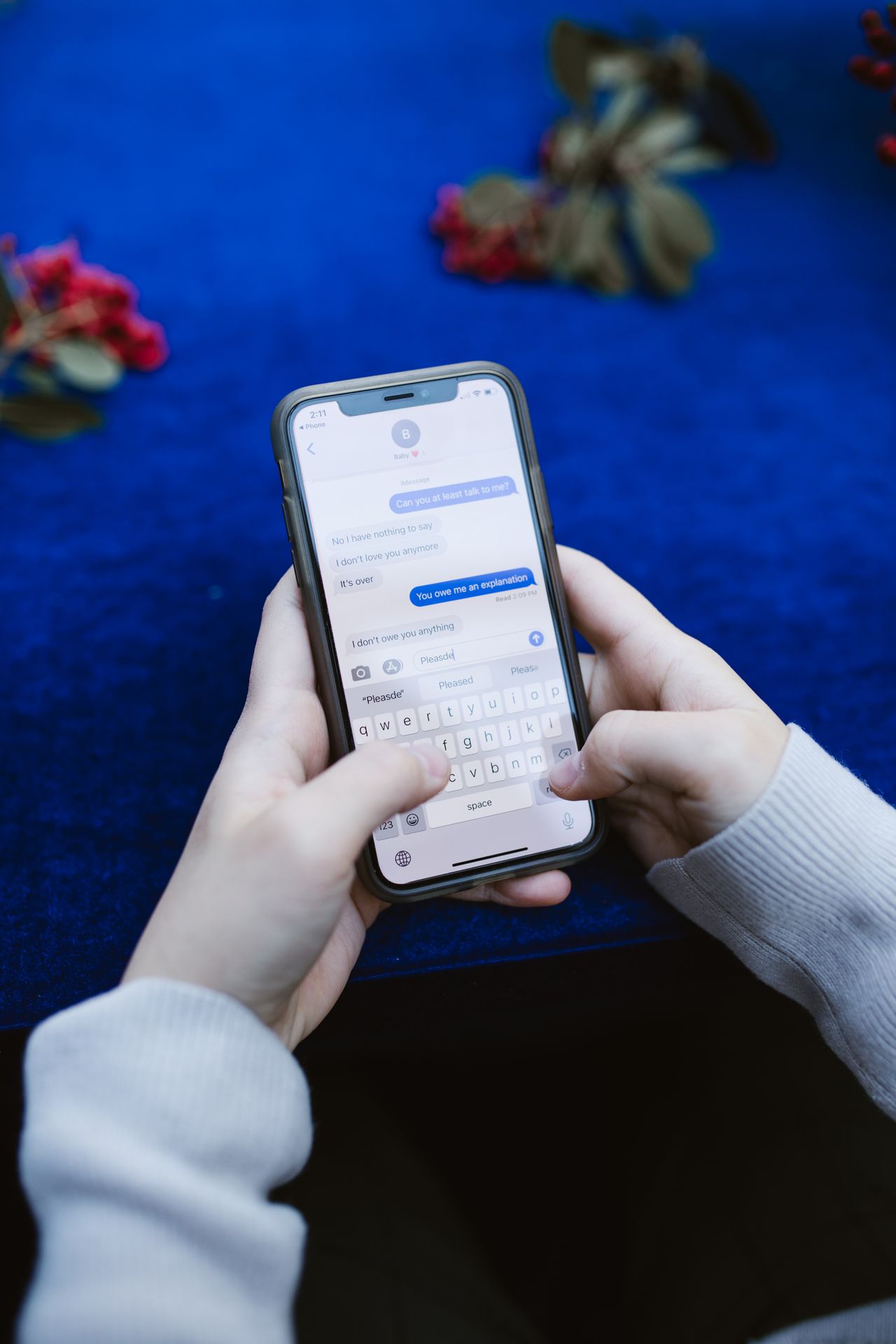
You land in a new country, pop out your domestic plastic SIM card using a paperclip or SIM-eject tool, and insert a local tourist SIM to get immediate mobile data. For the first few hours, everything works seamlessly. Then, exactly 24 hours later, your iPhone displays a sudden system alert: “Your phone number is no longer registered with iMessage and FaceTime.” Overnight, your regular green and blue bubbles vanish, ongoing group chats fragment, and your outgoing messages default to an obscure iCloud email address that your contacts do not recognize. Worse, toggling iMessage back on leaves your phone stuck on an endless “Waiting for activation…” loop. Understand the mechanics behind Apple’s silent-SMS deregistration clock, protect your device identity, and maintain continuous messaging with the MobiMatter Travel eSIM Marketplace.
SMARTROAM
1. The Root Cause: Apple’s Cryptographic Silent-SMS Handshake
To understand why iMessage drops your phone number while abroad, look at how Apple authenticates ownership of a mobile line:
- The Carrier-Switch Handshake: To prevent phone number spoofing and identity theft across the encrypted iMessage network, Apple does not verify numbers via basic username-password logins. When you register a phone number on iOS, your device sends an invisible, automated background SMS (a “silent SMS”) to an Apple carrier-switch verification server.
- The Hardware Anchor (IMSI): This silent SMS validates that the unique International Mobile Subscriber Identity (IMSI) hardcoded into your physical SIM card matches the phone number currently bound to your Apple account.
- The 24-Hour Deregistration Clock: When you remove your physical home SIM card or toggle its line switch to OFF in iOS settings, Apple detects the hardware disconnect. iOS does not revoke your number instantly—it grants a temporary grace window of exactly 24 hours. Throughout this window, your phone attempts periodic background verification handshakes. Because the physical chip is sitting in your wallet or disconnected from carrier towers, every silent-SMS ping fails.
- The Identity Revocation: Once the 24-hour timer expires without a successful handshake, Apple automatically unlinks your cellular number from iMessage and FaceTime. All incoming messages sent to your phone number fail to deliver, and outbound messages fall back to your Apple Account email address.
2. The “Waiting for Activation” Trap While Traveling Abroad
Once your phone number is revoked by iOS, attempting to re-link it while standing in a foreign country introduces four compounding technical barriers:
The International SMS Requirement
To re-activate a dropped phone number, iOS must transmit an outbound international text message to Apple’s regional verification gateway (typically located in the UK, Ireland, or the US). If your home carrier line lacks international roaming airtime or blocks international outbound SMS by default, this activation message will not send.
The Carrier Roaming Bill Shock
Re-inserting your home SIM to force an activation handshake can trigger an accidental connection to a local roaming partner. If your device has background cellular data enabled, background apps can trigger an automatic $10 to $15 daily roaming pass from your domestic carrier just to send a single SMS.
Fragmented Family & Work Chats
When iMessage reverts your identity to an email address, existing group chats do not automatically merge. Your contacts receive messages from a separate thread, causing missing replies, unread family updates, and confusion during travel logistics.
Loss of Two-Factor SMS Codes
With your physical home SIM removed from the phone tray, critical SMS-based two-factor authentication (2FA) verification codes from your bank, credit card apps, and airline booking portals fail to reach your handset entirely.
Physical Tourist SIM vs. Digital Travel eSIM: iMessage Impact
| Operational Metric | Swapping to a Physical Tourist SIM | Toggling Off Home SIM in Settings | Using a Secondary Travel eSIM (Dual-SIM Standby) |
|---|---|---|---|
| 24-Hour Silent-SMS Handshake | Fails (Physical chip removed from tray) | Fails (Line powered down completely) | ⚡ Passes (Home SIM remains powered on in standby) |
| iMessage Number Retention | Revoked after 24 hours | Revoked after 24 hours | ⚡ 100% active and retained throughout your trip |
| Outgoing Message Identity | Defaults to iCloud email address | Defaults to iCloud email address | ⚡ Retains your primary phone number |
| 2FA Banking & Travel SMS | Lost (Requires swapping chips back) | Lost until line is manually toggled on | ⚡ Delivers continuously (Incoming SMS is universally free) |
| Risk of Carrier Data Roaming | Zero (Physical chip is removed) | Zero (Line is turned off) | ⚡ Zero (When Data Roaming is turned OFF on home line) |
| Setup Friction | Requires physical ejection pins & plastic chips | Requires daily manual toggling | ⚡ Completely digital over-the-air installation |
The Dual-SIM Solution: Keep the Radio Alive, Cut the Data
The cleanest way to avoid Apple’s deregistration clock is to ensure your home SIM never leaves the device. With modern Dual-SIM architecture (available on iPhone XS and later), your iPhone can maintain two cellular lines simultaneously on Dual SIM Dual Standby (DSDS).
Traveling with Family or Multiple Devices?
Tethering your laptop or buying four separate phone eSIMs drains batteries and runs up costs. The Linklan LA7 Open Pocket Wi-Fi connects up to 16 devices on an independent 5,000mAh battery (12+ hours runtime) using any low-cost travel eSIM profile.
Through MobiMatter, travelers can install a standalone travel eSIM profile dedicated strictly to low-cost international data. By configuring iOS to route all mobile web traffic through the travel eSIM while keeping your primary home line connected to cellular towers for Voice and SMS only, you fulfill Apple’s background silent-SMS handshakes without paying a single dollar in domestic carrier data roaming fees.
3. Step-by-Step Runbook: How to Configure iOS Dual-SIM Correctly
Follow this exact device configuration before your flight departs to keep your iMessage number permanently active while preventing home carrier roaming charges:
- Install Travel eSIM at Home: Purchase your regional data package on MobiMatter 1 to 2 days before leaving. Scan the QR code while connected to home Wi-Fi and label the profile “Travel Data”.
- Leave Physical Home SIM in Place: Do not eject your physical SIM card, and do not toggle “Turn On This Line” to OFF. Your home line must remain powered on to receive incoming verification tokens.
- Shut Off Home Line Data Roaming: Go to Settings > Cellular / Mobile Data. Tap your primary home carrier line. Ensure the toggle for Data Roaming is turned OFF. This blocks all out-of-bundle internet data charges on your home line.
- Assign Cellular Data to Travel eSIM: In the main Cellular menu, tap Cellular Data and select your “Travel Data” eSIM profile.
- Disable “Allow Cellular Data Switching”: Crucially, turn the toggle for “Allow Cellular Data Switching” to OFF. If left enabled, iOS will quietly route data over your home carrier line whenever your travel eSIM encounters a momentary dead zone, triggering daily roaming fees.
- Confirm iMessage Address Routing: Navigate to Settings > Messages > Send & Receive. Verify that your regular domestic phone number remains checked under both “You can receive iMessages to and reply from” and “Start new conversations from”.
- Touch Down & Roam: Once your aircraft lands, open Settings > Cellular > Travel Data and toggle Data Roaming to ON for the travel line only. Your iPhone will connect to high-speed 5G local networks, while your primary number continues handling iMessage without interruption.
Actionable Tip: Standard incoming SMS text messages are free to receive from virtually all mobile operators worldwide. As long as you keep Data Roaming turned OFF on your home line and refrain from answering incoming cellular voice calls, your primary SIM will sit safely in standby, receiving two-factor authentication codes and keeping iMessage active without billing surprises.
Leave a Reply